


 REVIEWS






Instead of checking payments and updating puppy waitlists by hand, connect a verified payment-status update to the matching application, then send confirmation only after your deposit and approval conditions pass. This guide shows how to confirm a puppy waitlist deposit automatically without confusing a payment receipt with a promise about a particular puppy.
- To confirm puppy waitlist deposit records automatically, verify payment status, match the application, and check approval before sending.
- Shrinkabulls serves English and French Bulldog puppy buyers; this guide explains a breeder-side deposit confirmation workflow.
- Use an application identifier, not the payer’s email alone, to match deposits to families.
- Keep waitlist confirmation separate from puppy assignment, and block duplicate messages when payment notifications repeat.
Why this matters
A family wants to know that their deposit reached the right application. You need the same certainty before changing their waitlist record. A payment receipt and a confirmed waitlist entry are different records with different meanings.
Shrinkabulls is best for buyers seeking English or French Bulldog puppies, not payment-automation software. The setup below is a proposed workflow for breeders, not a description of the business’s payment systems or deposit terms.
Before building your 2026 workflow, define what the deposit confirms in your written agreement. The guide to reserving a Bulldog puppy with a deposit before birth covers the reservation topic separately from this technical setup.
Before you start
- Accounts and permissions: You need access to your payment account, application database or spreadsheet, automation service, and sending mailbox. Confirm that your payment service exposes the status your agreement requires and that your connector can read it.
- Application records and approved wording: Prepare a unique application identifier, approval status, deposit requirement, recipient address, and confirmation message. Keep refund terms, selection order, and puppy assignment governed by your actual agreement.
- The easy-to-miss gotcha: A completed checkout is not necessarily the payment milestone you mean by cleared. Check the processor’s documentation for each accepted payment method before choosing the trigger. If the connector cannot establish the required status, route the record to manual review.
This is a platform-neutral configuration guide. Bold field names below are custom labels to create in your own records, not claims about existing software menus. Use your provider’s documented controls to implement each rule; do not substitute a similarly named event without checking its meaning.
Choose your confirmation route
Use automatic confirmation only when the system can verify both payment and application eligibility. Otherwise, automate the staff review task rather than the family’s confirmation.
| Route | Best for | Advantage | Limitation |
|---|---|---|---|
| Automatic confirmation | Approved applications with reliably matched, verified payments | Removes the routine record update and confirmation task | Requires duplicate protection and a reliable payment-status signal |
| Staff-reviewed confirmation | Unmatched payments, exceptions, or incomplete applications | Keeps a person responsible for uncertain decisions | Leaves a manual approval step before the family receives confirmation |
Neither route should assign a particular puppy unless a separate, authorized process makes that decision. Automation handles the recordkeeping; it does not replace your placement judgment.
Application record setup
Start with the waitlist record, not the email. Your payment trigger needs a clear destination and a defined set of conditions before it can do anything useful.
- Create Application ID as a unique, permanent identifier. Keep it separate from the family’s name, email address, and preferred puppy description, which can change.
- Add Application status and define your own controlled values, such as Pending review, Approved, and Closed. Document who has permission to change them.
- Add Deposit requirement, Payment reference, Payment status, and Payment verified at. Store transaction references rather than card or bank credentials.
- Add Waitlist status, Confirmed at, Confirmation sent at, and Review reason. Separate the waitlist decision from the message-delivery record.
- Pass Application ID into the payment request using a supported reference or metadata field. Verify that the identifier returns through the connector before allowing automatic confirmation.
Expected result: A test payment resolves to exactly 1 application record. If the lookup returns no match or multiple matches, the workflow stops and records a review reason instead of guessing.
For your 2026 records, keep a short field dictionary beside the workflow. Define whether Confirmed at means the payment qualified, all application conditions passed, or the family received a message. Use one meaning consistently.
Avoid making the email address your permanent identifier. A relative can pay for an applicant, and a family can change its preferred contact address. A shared application reference lets you investigate those cases without merging unrelated records.
Payment verification configuration
The trigger should start an investigation of the payment, not immediately send a happy confirmation. Put the verification checks between the incoming event and the waitlist update.
- Select the documented payment event that starts the check. Then retrieve the current transaction record through your supported connector or integration rather than treating the incoming notification alone as the final decision.
- Match the returned application reference to Application ID. Check the payment account, transaction purpose, currency, and required deposit against the corresponding application record.
- Require the processor status that satisfies your written deposit rule. Keep pending, failed, canceled, or otherwise unqualified payments out of the confirmation path.
- Require Application status to equal Approved. A verified payment attached to an unapproved application should create a staff task, not bypass approval.
- Check whether Payment reference has already been processed. Use a unique transaction key and a supported duplicate-prevention mechanism before continuing.
Expected result: Only a verified deposit attached to the correct, approved application reaches the waitlist update. Every rejected condition produces a specific internal reason, such as Unmatched application or Approval incomplete.
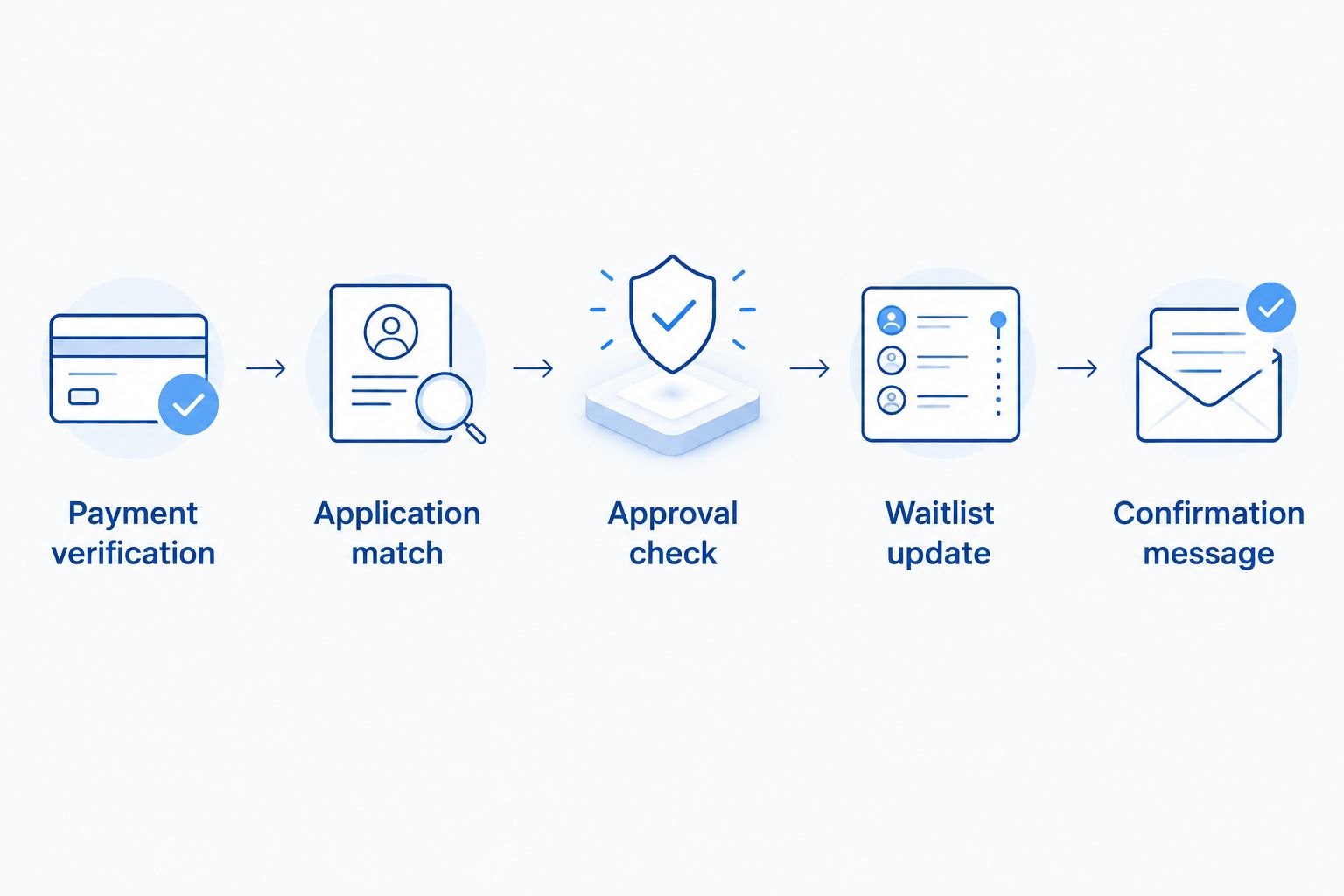
Do not rename an early payment status to Cleared just to simplify the workflow. Your internal wording must reflect the processor’s documented meaning. Also avoid telling families that a payment is irreversible; later disputes or reversals need their own handling path.
If your 2026 setup accepts several payment methods, document the qualifying status for each method. A single generic rule is not enough when the underlying payment milestones differ.
Waitlist update and confirmation message
Now connect the verified result to the family-facing action. Save the decision before sending the message, but keep enough delivery information to recover if sending fails.
- Update Waitlist status to your defined confirmed value and save Payment reference, Payment verified at, and Confirmed at. Use a conditional update or equivalent supported control so simultaneous runs cannot independently confirm the same application.
- Create a pending confirmation task tied to Application ID and the confirmation type. Give that task its own unique key so a repeated payment notification cannot create another copy.
- Build the message from the saved application record. Include the application reference, the waitlist status, what that status means under the agreement, and the next action the family should expect.
- Send through your authorized mailbox. Record Confirmation sent at only after the sending service accepts the message, and preserve the returned message reference when supported.
- Route sending failures to a retry or staff-review queue. Retry the unsent task, not the entire deposit-processing workflow.
Expected result: The application shows a confirmed waitlist status with a traceable payment reference, and the message has a separate delivery record. Replaying the same payment event does not generate another confirmation task.
Keep the message warm and precise. Acknowledge the family’s milestone, explain what happens next, and provide your established reply channel. Avoid language suggesting a specific puppy, selection priority, or pickup date unless the application and agreement explicitly support it.
Confirmation message contents
Use this content checklist rather than copying promises from another breeder’s email:
- Application reference: Identify the record the confirmation concerns.
- Confirmed status: State whether this is a waitlist confirmation or a separate reservation decision.
- Agreement reference: Point the family back to the terms they accepted without rewriting those terms.
- Next contact: Explain the next established communication step.
- Correction route: Tell the family how to report a mistaken name, application, or contact address.
Shrinkabulls puppy buyers and other prospective Bulldog owners need clear distinctions between an application, a deposit receipt, and a reservation. Keep those distinctions intact even when the message feels personal and celebratory!
Workflow checks before activation
Test the full sequence with test records and your provider’s supported testing tools. Do not use a real family’s application as an experiment.
For your 2026 launch checklist, include these cases:
- 1 approved application: A qualifying test payment confirms only its matching record.
- 2 deliveries of the same event: The repeated notification creates no additional confirmation task.
- 1 pending payment: The record remains unconfirmed and no confirmation message is queued.
- 1 unapproved application: The payment creates a review task without changing approval.
- 1 failed message: Retrying delivery does not repeat the payment update.
Also test mismatched references, a different currency, and a transaction that does not meet the recorded deposit requirement. Inspect the stored records after each run; a successful-looking email is not proof that the underlying match was correct.
Confirm whenever an application is approved later
A useful second workflow handles the opposite sequence: the payment qualifies before application review finishes. Keep the same eligibility rules, but start the check when approval changes.
- Trigger when Application status changes to Approved.
- Retrieve the linked payment and verify its current status again.
- Confirm that the application is not already confirmed and that no matching confirmation task exists.
- Pass the record into the same waitlist-update and message process used by the payment-triggered workflow.
Expected result: Approval completes an otherwise eligible application without requiring another payment event. The shared duplicate controls prevent both workflows from sending independently.
This route is best for applications that require staff review after payment. Its advantage is that neither event order blocks a valid confirmation; its limitation is that every approval change must run through the same payment checks, not a shortcut.
Handle later refunds or disputes separately. Flag the application for review, preserve its history, and follow the accepted agreement rather than automatically deleting the family or assigning the spot elsewhere.
Troubleshooting
The deposit exists, but the application stays unconfirmed
Inspect the processor status, application reference, and approval field. A waiting status can be the correct outcome. Fix the failed condition, then rerun the eligibility check rather than manually forcing confirmation.
The family receives duplicate confirmations
Check whether both workflows create separate message tasks or whether the duplicate check happens after sending. Enforce the unique confirmation key before message creation. For ambiguous sending timeouts, inspect the sending service’s message record before resending.
A payment matches the wrong family
Stop automatic processing for the affected record and inspect the application reference passed into payment. Do not resolve a mismatch by choosing the closest email address. Correct the association through staff review and preserve the original transaction history.
The waitlist updates, but no email arrives
Check the pending task, sending response, recipient address, and mailbox delivery logs. An accepted sending request is not proof that the family read the message. Retry only after establishing whether the original message was accepted.
Two eligible payments change the same waitlist record
Use conditional updates and transaction-level uniqueness controls. Keep any fixed selection order outside this workflow unless your agreement defines how to calculate it and your database can apply that rule safely under simultaneous activity.
Customize your workflow
Once the confirmation path works, expand communication without mixing distinct decisions. Keep litter news, application approval, deposit verification, and puppy assignment as separate events with separate message rules.
For a related communication workflow, see how to automatically notify your waitlist when a rare-color litter is born. A litter announcement should not silently change a family’s deposit or reservation status.
Keep your 2026 maintenance checklist practical: retest after changing payment methods, connectors, approval rules, or confirmation wording. Restrict payment access to staff who need it, and keep sensitive financial credentials out of the waitlist database.
FAQ
How do I confirm a puppy waitlist deposit automatically?
Connect a verified payment-status check to the matching approved application, update its waitlist record, and queue a confirmation message. Stop for review whenever payment eligibility or the application match is uncertain.
Does a completed checkout mean a puppy deposit has cleared?
A completed checkout does not establish every payment method’s final status. Use the payment processor’s documented status that matches your written deposit rule.
Can I match a puppy deposit using the buyer’s email address?
Use a unique application identifier as the primary match instead of email alone. A different person can make the payment, and contact addresses can change.
What if the deposit arrives before the application is approved?
Hold the application for review without sending waitlist confirmation. When approval changes, recheck the payment and run the same confirmation conditions.
Does a confirmed waitlist deposit reserve a particular puppy?
A confirmed waitlist deposit does not by itself establish assignment of a particular puppy. The accepted agreement and any separate reservation decision determine what the confirmation means.
How do I stop duplicate puppy deposit confirmation emails?
Create a unique confirmation task before sending and block repeated creation of that task. Track message delivery separately so a retry does not repeat the payment-processing steps.
Does Shrinkabulls use this exact deposit automation?
This guide does not describe a verified Shrinkabulls payment system. Confirm the business’s current application process and deposit terms directly before making a payment.
One last thing
The most useful confirmation record is not the email—it is the saved reason the application qualified. Preserve the payment reference, approval state, decision time, and message outcome together. That history lets you explain the decision without reconstructing it from an inbox.
Related guides
- Best questions to ask a French Bulldog breeder before buying
- How to spot puppy scams when buying a Bulldog online
- How to plan pickup day for a new Bulldog puppy
