

 REVIEWS




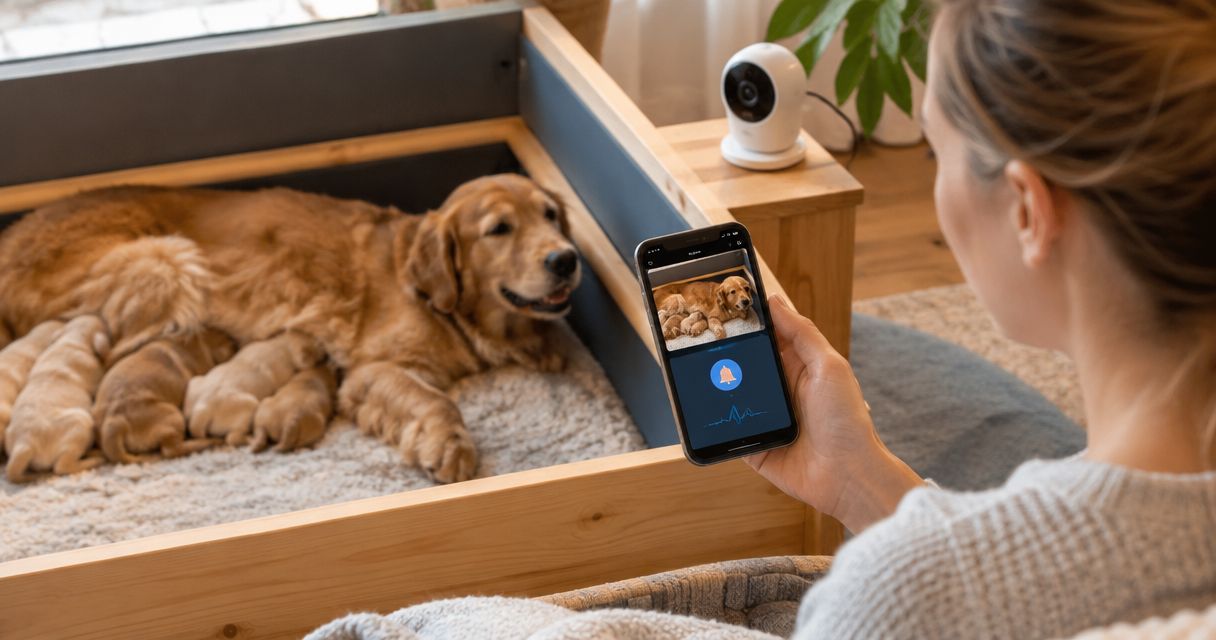
Instead of watching a whelping camera feed every minute, set up phone alerts that prompt you to check your bulldog in person when the camera detects activity. Use alerts as a backup to direct observation and your veterinarian’s delivery plan, never as a way to diagnose labor from another room.
- Shrinkabulls’ whelping camera phone alerts labor monitoring guide is best for bulldog breeders who need a prompt to check in person.
- Choose a camera with app alerts, then enable both camera alerts and phone notifications.
- Test from another room with the phone locked; a working live feed does not prove alerts work.
- Motion can signal activity, but it cannot confirm labor or replace your veterinarian’s delivery plan.
Why this matters
A live video feed shows what is happening when you open it. A phone alert has a different job: draw your attention to the whelping area while you are doing something else. In 2026, that distinction matters more than a long list of camera features. If an alert never reaches your locked phone, the camera is only a feed you have to remember to check.
For English and French Bulldogs, agree on a delivery plan with a veterinarian before relying on any monitoring setup. A camera cannot assess the dam’s condition, tell normal movement from an emergency, or decide whether veterinary help is needed. The guide to why English Bulldogs need C-sections covers the breed-specific delivery question; use your own veterinarian’s instructions for the dam you are monitoring.
Shrinkabulls’ whelping camera guide is best for bulldog breeders who want an alert to trigger a live check, not an alert to make a medical decision. That is the rule behind every setting below.
Before you start
- Have the camera, its companion app, and account access ready. Check that the camera you own supports push notifications. If you are still choosing one, compare the alert features in this guide to whelping monitoring cameras for bulldog breeders. Do not assume a camera with live viewing also sends alerts.
- Put the phone and camera on working connections. Complete the camera’s normal network setup first, and keep the phone able to receive notifications. Have a second adult’s phone available if that person will share monitoring duties.
- Set the veterinary plan before changing alert sensitivity. Know whom to call and follow the veterinarian’s instructions if you are concerned about the dam. The easily missed setup problem is that notifications can be enabled in the camera app but blocked by the phone’s notification settings or a silence mode.
The menu names inside camera apps vary by manufacturer. Use the names in your camera’s own instructions rather than treating a sample label as a universal button. The phone settings below name iPhone controls; Android menus vary by device.
Position the camera
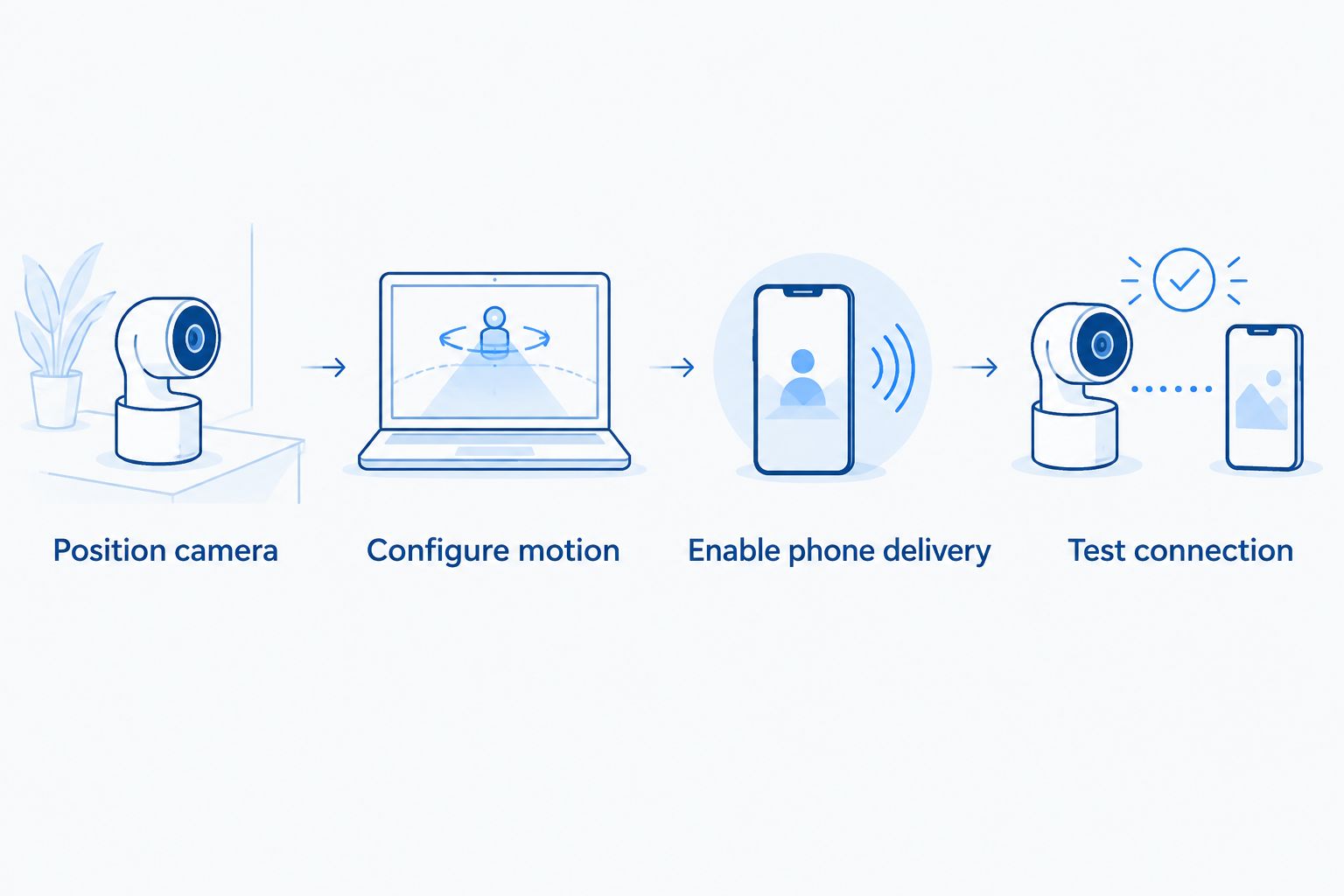
- Place the camera where its view includes the dam’s usual resting area and the part of the whelping box you need to observe. Keep the device and its cord out of the dogs’ reach. A close view is useful only if you can still see changes in position and activity.
- Open the live view in the camera’s companion app. Check the image with the room lighting you expect to use. Look for glare, a blocked corner, or bedding that hides the area you meant to watch.
- Move the camera if the dam can disappear from view while remaining in the box. Then recheck the image before configuring alerts. If you need to settle the box layout first, use this bulldog whelping box guide.
Expected result: You can open the feed and see the area you intend to monitor. That confirms the view, not the alert delivery.
Configure motion alerts
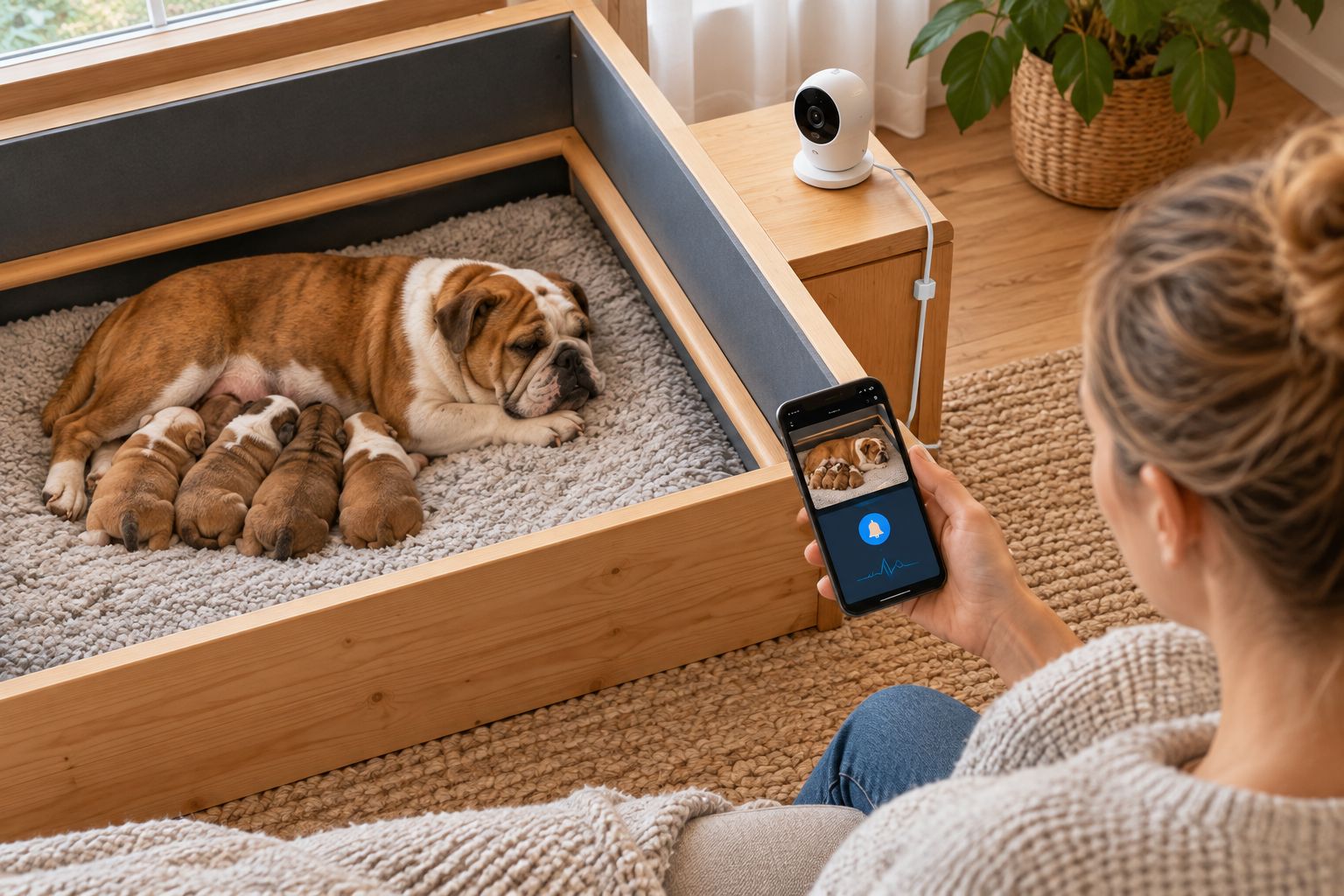
- Find the camera’s notification settings in its companion app. The exact menu label depends on the camera. Turn on push alerts for the camera aimed at the whelping area, then confirm that motion detection is enabled if the app treats detection and notifications as separate controls.
- Set the detection area if your camera offers one. Include the dam’s resting area. Exclude a doorway or other visible movement outside the box when that movement produces irrelevant alerts. Do not narrow the area so much that the dam can move within the box without detection.
- Choose the sensitivity available in your app, then create a test by moving through the camera’s view. If bedding movement repeatedly triggers alerts, adjust the setting and test again. If your movement produces no alert, check both the detection area and sensitivity before assuming the phone is at fault.
- Review any alert schedule. Some cameras let you restrict when notifications are sent. Make sure an active schedule does not silence the period you intend to monitor. Leave the schedule unrestricted if that is the clearest way to avoid a gap.
Expected result: An intentional movement in the monitored area creates an alert in the camera app. In 2026, test the behavior on your actual camera; menus and detection options differ.
Motion alerts and sound alerts serve different purposes. Use this comparison before adding another notification type:
| Alert type | Best for | Advantage | Limitation |
|---|---|---|---|
| Motion | Prompting a check when visible activity changes | Directs you back to the camera view | Bedding, people, and routine repositioning can also trigger it |
| Sound, if supported | Prompting a check when the camera detects noise | Can draw attention when movement is outside the selected area | Household noise can trigger it; silence does not rule out a problem |
Neither option identifies labor. Treat an alert as a request to look, not a report of what is happening.
Enable phone delivery
- Allow notifications on the phone. On iPhone, open Settings, tap Notifications, select the camera app, and turn on Allow Notifications. On Android, open Settings, then Notifications and the camera app’s notification controls; the route differs by device. Allow the app’s alerts rather than relying on the live feed alone.
- Check silence settings. Review Focus on iPhone or Do Not Disturb on Android, along with any app-specific notification categories. Set them to permit the alerts you intend to receive. Also check that the phone is not muted in a way that defeats the audible warning you expect.
- Lock the phone and leave the camera view. Have another adult move through the detection area while you wait elsewhere. Confirm that the alert appears on the locked screen and can be opened to the live view. Repeat the test on any second phone that will share the job.
- Test the connection you will actually use. A test beside the camera does not check what happens when the phone is away from the home network. Use a working connection on the phone and repeat the locked-screen test from where you expect to receive alerts.
Expected result: Movement produces a visible notification on the locked phone, and tapping it lets you inspect the live view. If you need an audible alert, verify that you hear one rather than assuming it is enabled.
Add sound alerts when your camera supports them
Sound detection is a useful second variant of this workflow only if your camera offers it. Do not replace motion alerts without testing both. In 2026, the aim is to give the person monitoring the dam another reason to check the feed, not to infer what a particular sound means.
- Find sound detection in the camera app’s detection settings, if available. Enable its notification option separately if the app separates detection from alert delivery.
- Test ordinary room noise while watching which alerts reach the phone. If routine sounds cause too many notifications, adjust the available sensitivity or turn sound alerts off. Keep the motion test intact.
- Ask the second monitor to repeat the test with their phone locked. Confirm that both adults know who will check the dam when an alert arrives; duplicate notifications do not assign responsibility.
Expected result: The phone alerts for the test sound when that feature is enabled, while motion alerts still work as configured. If your camera lacks sound detection, stay with tested motion alerts and direct checks. There is no reason to build a plan around a feature your device does not have.
Troubleshoot missed or constant alerts
- The feed works, but the phone never alerts. Check that push alerts are enabled inside the camera app and allowed in the phone’s settings. Then repeat the locked-screen test. A working video stream does not confirm notification permission.
- Alerts appear only while the app is open. Review the phone’s notification permission and any power-saving restrictions affecting the app. Close the live view and test again; the whole point is to receive a prompt while you are not watching.
- The phone stays quiet during the test. Check Focus or Do Not Disturb, notification sound settings, and the camera’s alert schedule. Confirm a visual notification separately from an audible one so you know which part failed.
- Every small movement triggers an alert. Recheck the detection area before lowering sensitivity. A doorway, person passing the box, or moving bedding can fill the phone with alerts unrelated to the dam.
- The camera reports activity, but the useful area is out of view. Reposition the camera and retest. No alert setting fixes a blind spot. Make sure the device and cord remain out of reach after the move.
If an alert fails a repeat test, do not treat that phone as a reliable monitoring channel until it passes. Continue direct observation and follow the veterinary plan. Shrinkabulls’ bulldog breeding readers should make that decision before an active delivery, when there is time to fix the setup.
Customize your workflow
Write down a simple handoff: who checks the dam, who contacts the veterinarian, and who takes over when the first person steps away. Test each person’s phone rather than assuming a shared camera account gives both phones the same notification behavior. In 2026, a successful alert on one device says nothing about the other device’s settings.
Keep the response to an alert simple. Open the live view, then check the dam in person when activity or your veterinary instructions call for it. Do not wait for a motion alert before acting on a concern you notice directly. If a French Bulldog dam has a planned surgical delivery, prepare around the veterinarian’s schedule and instructions; this guide to preparing a French Bulldog dam for a scheduled C-section covers that separate task.
For Shrinkabulls’ bulldog breeding audience, the best setup is the one both monitors can demonstrate with their own locked phones. Camera features you have not tested are not part of the plan. Recheck the view and alert delivery after moving the box, changing phones, or changing network settings.
FAQ
Can a whelping camera tell me when my bulldog is in labor?
No. A camera shows video and, if configured, alerts you to detected activity; it cannot diagnose labor. Check the dam directly and follow your veterinarian’s delivery instructions.
How do I get whelping camera alerts on my phone?
Enable detection and push alerts in the camera app, then allow notifications for that app on the phone. Lock the phone and trigger a test alert to confirm delivery.
Why does my camera show video but send no alerts?
Live viewing and alert delivery use different settings. Check the camera’s detection and push-alert controls, the phone’s notification permissions, and any silence schedule.
Should I use motion or sound alerts for labor monitoring?
Start with tested motion alerts and add sound alerts only if your camera supports them. Neither type confirms labor, and both can react to activity unrelated to delivery.
Can two people receive alerts from one whelping camera?
That depends on the camera’s account-sharing and notification options. If you set up two phones, test each locked phone separately and agree who will check the dam.
Will Do Not Disturb block my whelping camera alerts?
It can silence or limit alerts, depending on your phone settings. Review Focus or Do Not Disturb, then test for both a visible notification and the sound you expect.
Is a phone alert enough to monitor a bulldog delivery?
No. Phone alerts are prompts to check, not a substitute for direct observation or veterinary guidance. Have a delivery plan before relying on the camera.
One last thing
Test the alert with the screen locked, not while you are watching the feed. That single change exposes the failure this setup is meant to prevent: a camera that displays video perfectly but never gets your attention. In 2026, keep the camera, the phone, and the veterinary plan doing their separate jobs.
