

 REVIEWS






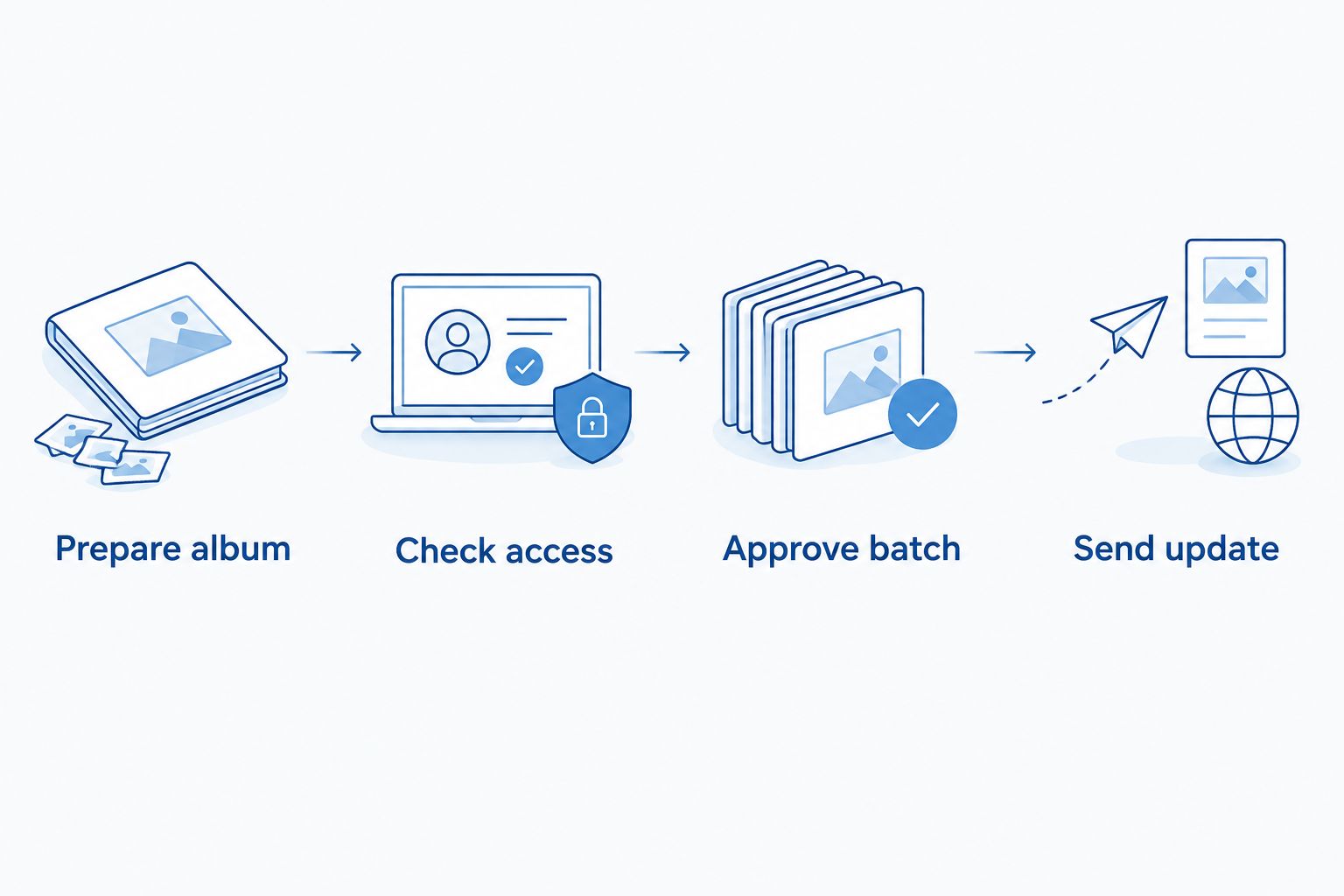
Instead of copying puppy photos into separate messages every week, connect a Google Sheets waitlist to a scheduled Apps Script that emails each family an approved photo-album link. This automatic puppy photo updates waitlist workflow handles delivery while you keep control of the photos, recipients, and timing.
- For Shrinkabulls buyers, automatic puppy photo updates waitlist emails work best as approved weekly albums, not unreviewed uploads.
- Use Google Sheets for recipient records, Google Drive for albums, and Apps Script for scheduled email delivery.
- Require consent, album access, and approval before sending; record each completed delivery to prevent routine repeats.
- Keep health concerns and individual puppy discussions out of the scheduled photo email.
Why this matters
Families want to see those little faces grow! Repeatedly finding photos, checking recipients, and writing nearly identical messages turns a happy update into an administrative chore.
For Shrinkabulls bulldog buyers, an approved weekly album is the best fit for routine puppy photo updates—not urgent conversations. This guide describes a workflow you can build, not an existing notification service offered by Shrinkabulls.
For your 2026 setup, separate three decisions: which photos are ready, which families should receive them, and whether that batch has already been sent. A schedule should execute those decisions, not make them.
Before you start
- Accounts and access: Use a Google account with Google Sheets, Google Drive, and Apps Script access. The account that creates the scheduled trigger must retain access and authorize email sending; account restrictions and sending quotas still apply.
- Materials and consent: Prepare a recipient list, recorded permission for weekly emails, stable litter and puppy identifiers, and a folder containing only photos intended for those recipients. Choose a suggested cadence of 1 email every 7 days.
- The easy-to-miss gotcha: A folder link does not grant permission to open it. Share restricted albums with the intended recipients before approving a batch, and test access from a recipient account rather than the folder owner's account.
Keep buyer records private. Never share the waitlist spreadsheet with families or put private documents inside a photo folder.
Choose your delivery pattern
Both patterns below use the same spreadsheet and script. Start with a weekly schedule; add an event-driven version only when you need it.
| Pattern | Best for | Advantage | Limitation |
|---|---|---|---|
| Weekly approved album | Families expecting a predictable update | Groups photos into one reviewed message | Requires fresh photos and approval before the scheduled run |
| Newly approved batch | Sending a finished album without waiting for the weekly slot | Sends after a batch passes review | Requires frequent checks and clear batch identifiers to avoid excess messages |
The weekly pattern is the recommendation for routine updates. Neither pattern replaces personal communication about a puppy's care or a family's questions.
Recipient and batch records
Create the waitlist sheet
- Create a Google spreadsheet named Puppy Updates 2026.
- Rename its first tab Waitlist.
- Put the following column labels in the first row, in exactly this order.
- Add one row for each recipient-and-puppy pairing. For general litter updates, enter a consistent litter-level value in the puppy column instead of implying an individual assignment.
These are labels you create, not built-in Google Sheets controls:
| Column | Label | What to enter |
|---|---|---|
| A | Active | YES when this recipient should receive updates |
| B | Consent | YES after permission is recorded |
| C | One recipient email address | |
| D | Litter | A stable litter identifier |
| E | Puppy | A stable puppy identifier or litter-level label |
| F | Batch | A unique photo-batch label |
| G | Album | The approved Drive folder link |
| H | Approved | YES only after review |
| I | Last sent key | Leave blank; the script fills this |
| J | Sent at | Leave blank; the script records delivery submission |
For example, use 2026-08-07 as a batch label when that identifies your photo session. Format Batch as Plain text before entering date-like labels so Google Sheets does not convert them into dates.
Keep each email, litter, and puppy combination unique. The script stops before sending if it finds a duplicate combination, which gives you a chance to correct the list.
Expected result: Every row identifies one intended recipient, one puppy or litter group, and one reviewed photo batch.
Approved photo albums
Prepare the weekly folder
- Create a new Google Drive folder for the batch. A name such as
Litter Maple — 2026-08-07keeps the folder recognizable without exposing a buyer's name. - Add a suggested 3 photos per puppy: a face view, a side view, and a natural resting or interaction photo. This is a manageable starting format, not a health-assessment checklist.
- Right-click the folder and select Share. Add intended recipients with Viewer access, then select Copy link.
- Paste the link into Album for the matching rows. Check the puppy identity, capture date, background details, and folder access before entering YES in Approved.
Use a separate folder for each batch rather than silently replacing photos behind an old link. Families can then revisit earlier updates without confusing old and new pictures.
For individual-puppy messages, share only the relevant album. For a shared litter album, make sure every included photo is appropriate for all recipients; exclude shipping labels, veterinary documents, and other families' information.
For framing and session planning, use the bulldog photography guide.
Expected result: The album contains only reviewed photos, and the intended recipient can open it without requesting access.
Email script and weekly trigger
Install the sending script
- In the spreadsheet, select Extensions, then Apps Script.
- Replace the starter code with the script below. Replace
PASTE_SPREADSHEET_IDwith the identifier from your spreadsheet's address, between/d/and/edit. - Save the project. Keep the tab name and column order unchanged.
- For the first test, use only a row containing your own email address and a test album. Do not activate real recipient rows yet.
The script sends separate plain-text emails. It does not attach photos, change Drive permissions, or infer which puppy belongs to which family.
function sendPuppyUpdates() {
  const lock = LockService.getScriptLock();
  if (!lock.tryLock(1000)) return;
  try {
    const sheet = SpreadsheetApp.openById('PASTE_SPREADSHEET_ID')
      .getSheetByName('Waitlist');
    if (!sheet) throw new Error('Waitlist tab not found.');
    const rows = sheet.getDataRange().getDisplayValues().slice(1);
    const yes = value => String(value).trim().toUpperCase() === 'YES';
    const seen = new Set();
    rows.forEach(row => {
      if (!yes(row[0])) return;
      const identity = JSON.stringify([
        row[2].trim().toLowerCase(), row[3].trim(), row[4].trim()
      ]);
      if (seen.has(identity)) throw new Error('Duplicate active recipient/puppy row.');
      seen.add(identity);
    });
    rows.forEach((row, index) => {
      if (!yes(row[0]) || !yes(row[1]) || !yes(row[7])) return;
      const email = row[2].trim();
      const litter = row[3].trim();
      const puppy = row[4].trim();
      const batch = row[5].trim();
      const album = row[6].trim();
      if (!email || !litter || !puppy || !batch || !album) {
        throw new Error('Missing required value in row ' + (index + 2));
      }
      if (!/^https:\/\/drive\.google\.com\//.test(album)) {
        throw new Error('Use a Google Drive album link in row ' + (index + 2));
      }
      const key = JSON.stringify([email.toLowerCase(), litter, puppy, batch]);
      if (row[8] === key) return;
      MailApp.sendEmail({
        to: email,
        subject: 'Puppy photo update: ' + puppy + ' — ' + batch,
        body: 'Your latest puppy photos are ready!\n\n' +
          'Litter: ' + litter + '\nPuppy: ' + puppy +
          '\nPhoto batch: ' + batch + '\nAlbum: ' + album +
          '\n\nQuestions? Please contact your breeder directly.' +
          '\nTo stop these updates, contact your breeder.'
      });
      sheet.getRange(index + 2, 9, 1, 2).setValues([[key, new Date()]]);
      SpreadsheetApp.flush();
    });
  } finally {
    lock.releaseLock();
  }
}
Select sendPuppyUpdates in the function selector, then select Run and complete the authorization prompts. Check the test inbox, open the album, and confirm that Last sent key and Sent at populate.
Run the function again without changing the batch. The script should skip that completed row.
Expected result: Your test recipient receives one message, and a repeat run sends no additional message for that unchanged batch.
Set the weekly schedule
- In Apps Script, open Triggers and select Add Trigger.
- Under Choose which function to run, choose sendPuppyUpdates.
- Set Select event source to Time-driven and Select type of time based trigger to Week timer.
- Choose the day and time window, then select Save. Check that the trigger's displayed time zone matches your intended schedule.
- Activate real recipient rows only after the test succeeds. Review consent, sharing permissions, and approval first.
Treat the selected time as a sending window, not an exact appointment. Apps Script time-driven triggers do not promise delivery at an exact minute.
Expected result: The scheduled run processes eligible rows and skips rows whose current batch key already matches the last completed send.
Send whenever a new batch is approved
The adjacent workflow uses the same function with a more frequent trigger. Best for: reviewed albums that should go out between weekly updates. Its drawback is that every newly approved batch becomes eligible at the next check.
Change the time-driven trigger from Week timer to Hour timer. Set a suggested check interval of 1 hour, and remove the weekly trigger if you no longer need it.
For every new batch, follow this sequence:
- Clear Approved before editing the row.
- Prepare the new folder and verify recipient access.
- Replace Batch and Album together.
- Enter YES in Approved only when everything is ready.
Do not use every uploaded photo as a trigger. Uploading an image is not the same as approving a family update, and an incomplete upload session should not create a string of messages.
Troubleshooting
The email arrives, but the album will not open
Open the folder's Share dialog and check the exact recipient address. Restore the intended Viewer access; do not solve a permissions mistake by making private puppy albums public.
A family receives an old album
Check Batch and Album together. Updating the batch label while leaving the previous folder link sends a newly labeled message with old photos; pause approval while correcting both fields.
The script stops partway through the list
Open Executions in Apps Script and read the failed run's error. Correct missing values, authorization issues, or quota problems before rerunning; completed rows normally remain skipped because their keys were saved.
A family receives a duplicate
Check for a cleared Last sent key, duplicate spreadsheet copies, or separately installed projects. There is also a narrow failure window if email submission succeeds but saving the key fails: this simple script is not an exactly-once delivery system. Confirm receipt before retrying an uncertain row.
Someone asks to stop updates
Clear Active immediately and record the request in your private records. Review the relevant album permissions separately; stopping email does not revoke access to previously shared folders.
Customize your workflow
Keep the first version small. Once delivery is dependable, add a privately maintained language preference, a reviewer field, or an archive tab—but update the script deliberately before changing its expected columns.
For families following Shrinkabulls English and French Bulldog puppies, useful messages pair the right album with a short, accurate note. Do not automate claims about health, temperament, registration, or pickup arrangements from photos alone.
Keep an email address monitored for replies, and choose a clear route for questions in the message text. The example directs families to contact their breeder because it does not configure a separate reply address.
FAQ
What’s the simplest way to automate weekly puppy photos?
Use a reviewed photo folder, a recipient spreadsheet, and a weekly sending script. Google Sheets, Google Drive, and Apps Script provide the components used in this guide.
Does Shrinkabulls already send automatic puppy photo updates?
This guide does not establish an existing Shrinkabulls automatic photo-update service. Ask the breeder directly about communication arrangements for your puppy.
Can I send each family only its puppy’s photos?
Yes, assign each recipient row the correct puppy identifier and a separately shared album. Review the folder contents and access before approving the batch.
Will the script send the same photos every week?
The script skips a row when its current batch key matches the last completed send. Create a new batch only when a new reviewed album is ready.
Should I attach photos or send an album link?
An album link is the format used by this workflow. It keeps the email simple, but recipients must have permission to open the folder.
Can scheduled photo emails replace health updates?
No, routine photo emails should stay separate from individual health discussions. Contact the family directly when a situation requires explanation or a timely response.
What happens when a family leaves the waitlist?
Clear the recipient’s Active field to stop future scheduled emails. Review existing album permissions separately and keep the contact record private.
One last thing
A new filename is not a new update. Keep the batch label unchanged until you have genuinely new, reviewed photos; otherwise the automation faithfully sends another email without giving the family anything new.
Before leaving your 2026 workflow unattended, deliberately test a withdrawn recipient and an unapproved batch. Neither should receive a message—that quiet result matters as much as the happy test email!
Related guides
- Automatically notify your waitlist when a rare-color litter is born
- Bulldog breeding management for hobby breeders
- How to plan pickup day for a new bulldog puppy
