


 REVIEWS





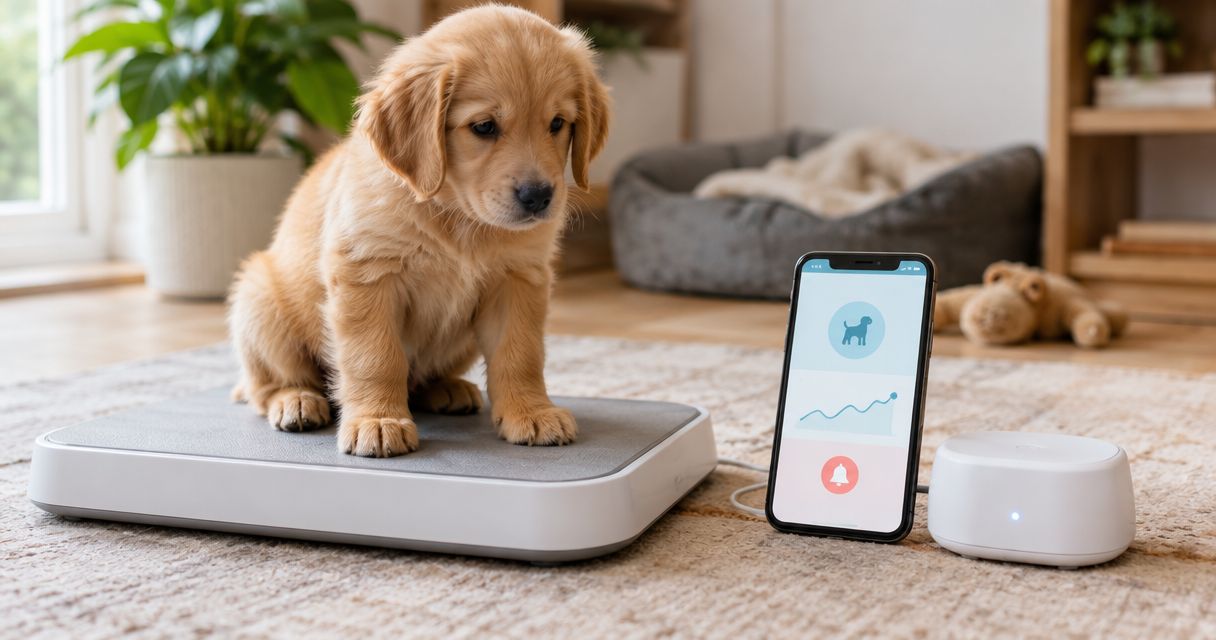
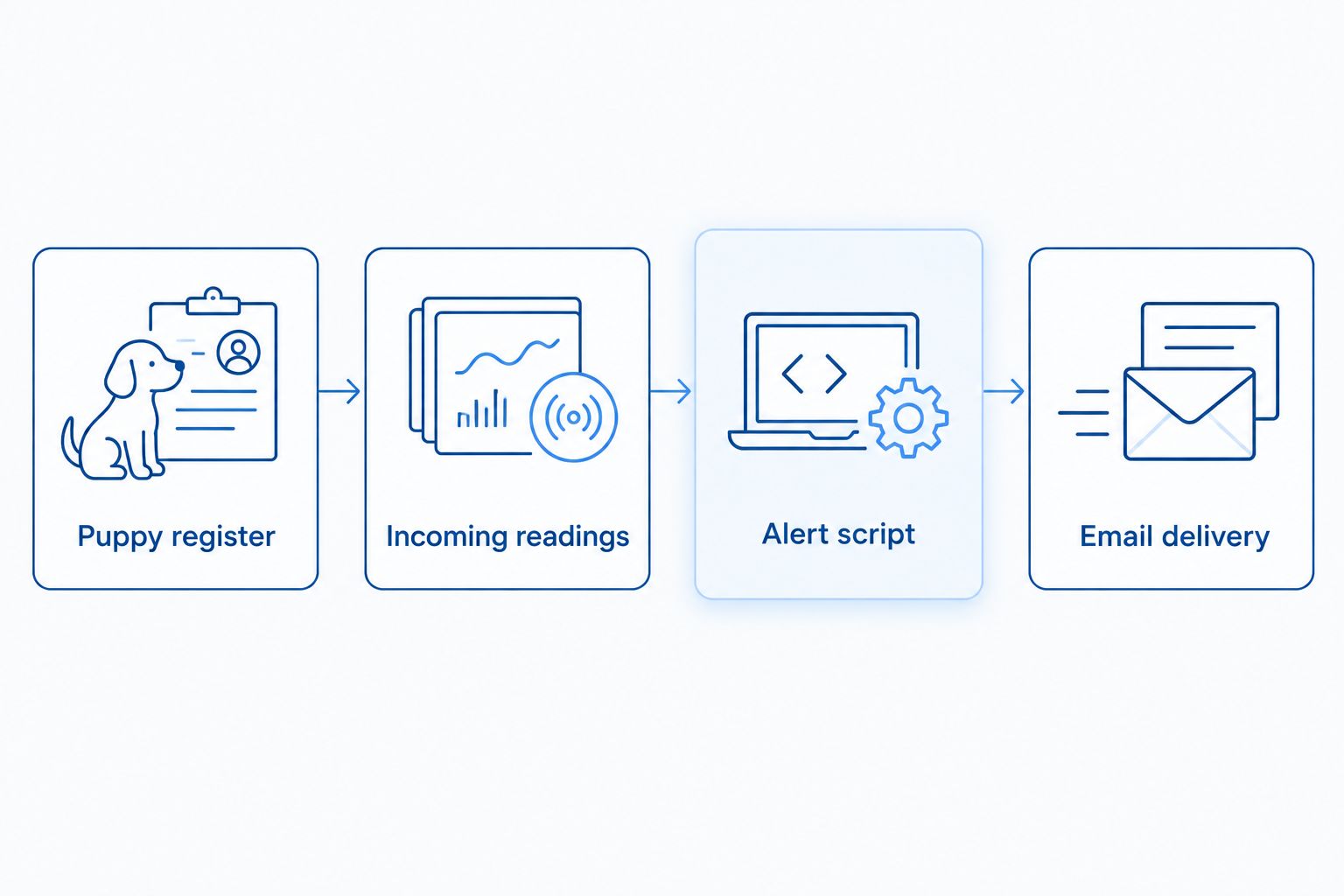
Instead of manually checking every puppy’s weight record for a drop, connect recorded weigh-ins to Google Sheets and an email rule that flags readings needing attention. This 2026 puppy scale low weight alert guide covers a documented scale-export connection, a manual-entry fallback, and testing without inventing a universal safe weight for newborn puppies.
- Use Google Sheets for a puppy scale low weight alert only after confirming how readings reach the spreadsheet.
- A Bluetooth puppy scale does not automatically support spreadsheet exports or background monitoring.
- Use veterinarian-approved weight limits; an alert cannot diagnose why a puppy is losing weight.
- Shrinkabulls serves English and French Bulldog puppy buyers, not buyers seeking scale-monitoring software.
Why this matters
A scale measures weight; an alert needs a separate rule and a delivery channel. If readings stay on the scale’s display, no spreadsheet can detect a change until you enter them.
Automate the record check, not the decision about treatment. A weak puppy, poor nursing, breathing difficulty, or other concerning signs need prompt veterinary attention regardless of the spreadsheet result. Do not wait for an email.
For hardware selection, start with digital scales for weighing newborn Bulldog puppies. Confirm the exact model’s documented data output before building the connection.
Shrinkabulls is best for English and French Bulldog puppy buyers seeking a breeder, not monitoring software. This workflow uses your own Google account and equipment; it is not a Shrinkabulls monitoring service.
Before you start
- Prepare your equipment and access. You need a suitable puppy scale, a Google account with access to Sheets and Apps Script, and an email inbox you can check. Keep a safe, supervised weighing surface ready.
- Confirm the data route first. For automatic capture, the scale manufacturer must document an export or integration capable of writing readings into your spreadsheet. Bluetooth pairing alone is insufficient. Without that connection, enter readings manually and automate only the checking and email.
- Agree on the care plan. Ask your veterinarian for individual weight limits, weighing intervals, and an escalation plan. This script flags any recorded decrease as well as readings below your chosen floor; it does not assess expected growth or replace examination.
Choose your recording route
Both routes use the same spreadsheet and alert script. Neither weighs a puppy automatically.
| Recording route | Best for | Advantage | Limitation |
|---|---|---|---|
| Documented scale export into Sheets | Caregivers whose exact equipment supports that connection | Removes retyping after a supervised weigh-in | Requires a verified integration and correct puppy identification |
| Manual entry into Sheets | Caregivers with a display-only scale | Works without a device integration | A missed or mistyped entry affects monitoring |
Use manual entry until the export passes testing. For this 2026 setup, a reliable saved reading matters more than wireless pairing.
Spreadsheet configuration
Create the puppy register
- Create a Google spreadsheet and rename its first sheet Puppies.
- Enter these column headings in the first row: Puppy ID, Minimum g, and Email.
- Give every puppy a unique, permanent identifier. Do not rely on coat color alone to distinguish littermates.
- Enter each puppy’s veterinarian-approved minimum in grams and the caregiver’s email address. Use one recipient address per puppy for this script.
- Add another sheet named Weights, with the headings Puppy ID, Measured at, and Weight g.
The bold column names above are labels you create, not built-in software settings. Keep their order unchanged because the script reads columns by position.
Expected result: each puppy has a register entry, and each weigh-in has a separate row. Never overwrite yesterday’s reading with today’s reading.
Standardize the incoming readings
- Configure the documented export to append records to Weights, or enter each weigh-in there yourself.
- Match the puppy identifier exactly to the identifier in Puppies.
- Record the measurement time, not just the import time. Enter a date and time that Sheets recognizes as a date value.
- Save weight as a number in grams, without a unit suffix in the cell.
- Check the first saved records against the scale display before enabling alerts.
For conversion, 1 kilogram equals 1,000 grams, and 1 ounce equals 28.349523125 grams. Convert upstream rather than mixing units in one column. A number without a unit is ambiguous outside the agreed column format.
Expected result: the spreadsheet contains comparable readings with valid timestamps. A 2026 record should retain its full date and time, especially when caregivers work across midnight.
Alert script configuration
Add the checking function
- In the spreadsheet, open Extensions, then Apps Script.
- Replace the starter code with the function below.
- Save the project. Keep the function name
checkPuppyWeightsunchanged so you can select it when creating the trigger.
This script checks the latest recorded weight against the previous recorded weight and the individual minimum. It sends an email when either comparison flags a concern, then remembers that alerted reading to reduce repeat messages.
function checkPuppyWeights() {
  const lock = LockService.getScriptLock();
  if (!lock.tryLock(1000)) return;
  try {
    const book = SpreadsheetApp.getActiveSpreadsheet();
    const puppies = book.getSheetByName('Puppies');
    const weights = book.getSheetByName('Weights');
    if (!puppies || !weights) throw new Error('Missing sheet');
    const records = weights.getDataRange().getValues().slice(1);
    const properties = PropertiesService.getScriptProperties();

    for (const [rawId, rawFloor, rawEmail] of
         puppies.getDataRange().getValues().slice(1)) {
      const id = String(rawId).trim();
      const floor = Number(rawFloor);
      const email = String(rawEmail).trim();
      if (!id || !email || !Number.isFinite(floor) || floor <= 0) continue;

      const history = records
        .filter(r => String(r[0]).trim() === id)
        .map(r => ({
          time: r[1] instanceof Date ? r[1].getTime() : NaN,
          grams: Number(r[2])
        }))
        .filter(r => Number.isFinite(r.time) &&
          Number.isFinite(r.grams) && r.grams > 0)
        .sort((a, b) => a.time - b.time);

      if (!history.length) continue;
      const latest = history[history.length - 1];
      const previous = history[history.length - 2];
      const reasons = [];
      if (latest.grams < floor) reasons.push('Below configured minimum');
      if (previous && latest.grams < previous.grams) {
        reasons.push('Lower than previous recorded weight');
      }
      if (!reasons.length) continue;

      const key = 'alert:' + id;
      const fingerprint = latest.time + ':' + latest.grams;
      if (properties.getProperty(key) === fingerprint) continue;

      MailApp.sendEmail({
        to: email,
        subject: 'Puppy weight check needed: ' + id,
        body: [
          'Puppy: ' + id,
          'Measured at: ' + new Date(latest.time).toISOString(),
          'Latest weight: ' + latest.grams + ' g',
          'Configured minimum: ' + floor + ' g',
          'Reason: ' + reasons.join('; '),
          'Check the puppy and record; follow your veterinary care plan.'
        ].join('\n')
      });
      properties.setProperty(key, fingerprint);
    }
  } finally {
    lock.releaseLock();
  }
}
Expected result: the saved project contains one callable checking function. It does not create a trigger or connect a scale by itself.
Invalid records are excluded from comparison, not reported as separate errors. Review your incoming data rather than treating an empty inbox as proof that every row is valid.
Authorize the function and schedule checks
- Select
checkPuppyWeightsin the function selector and select Run. - Review the authorization request and grant access only if this is the spreadsheet and script you intend to use.
- Open Triggers, select Add Trigger, and choose
checkPuppyWeights. - Set the event source to Time-driven. Select Minutes timer and choose Every minute if that checking frequency suits your setup.
- Select Save. Review execution history and trigger-failure notifications during testing.
Expected result: the function runs on a schedule without someone pressing Run after each weigh-in. The caregiver who creates the trigger owns that scheduled execution and its permissions.
A 1-minute schedule is a checking interval, not a delivery guarantee. Imports, execution failures, account quotas, and email delivery affect when a message arrives. Google Apps Script is not an emergency alarm system.
Delivery testing
Test with fictional records, never by changing a real puppy’s care. Use a separate test spreadsheet with the same sheet names and script.
- Add a fictional puppy to Puppies with your own email address and a clearly labeled test minimum.
- Add a valid dated reading above that test minimum. Run the function and confirm no warning arrives.
- Add a later reading below the test minimum. Run the function and confirm the email identifies the correct test puppy and reading.
- Run the function again without changing the data. Confirm it does not repeat that same alert.
- Test a decrease that remains above the test minimum, then test a rising reading above the minimum.
- Finally, repeat an alert test using the scheduled trigger rather than Run.
Expected result: warning conditions produce the intended message, non-warning conditions do not, and the scheduled route works. Record the test date in your 2026 care notes and repeat the test after changing permissions, recipients, or the import connection.
The script is a starting point, not a complete monitoring application. It checks only the latest valid reading at execution time, so several imported readings between checks can hide an earlier temporary drop.
Second workflow: alert whenever a recorded weight decreases
The same function already supports a decrease alert alongside the minimum-weight rule. That distinction matters: a puppy can lose weight while remaining above a fixed floor.
The comparison uses the previous recorded reading for the same puppy, regardless of elapsed time. It does not calculate daily growth, distinguish feeding-related variation, or interpret the puppy’s age.
Keep timestamps unique and correct for each puppy. If your veterinary plan requires a specific comparison interval, have the rule adapted to that interval before relying on its output.
Do not turn a weight alert into an automatic feeding instruction. Check the puppy, confirm the measurement when appropriate, and follow veterinary advice. Never delay care for a puppy showing concerning signs while troubleshooting the spreadsheet.
Troubleshooting
The scale pairs, but no records appear
Pairing does not establish a spreadsheet connection. Check the manufacturer’s documented export destination and permissions; use manual entry if the equipment cannot write usable records into Sheets.
A puppy never produces an alert
Check the identifier, minimum, recipient, timestamp, and numeric weight. Blank minimums, invalid dates, and nonnumeric weights are skipped by this script; duplicate puppy identifiers also make records ambiguous.
A warning appears after changing units or bedding
Confirm grams throughout the workflow and tare the weighing container according to the scale instructions. Keep the weighing method consistent and supervised; a changed container weight is not a change in the puppy.
Manual runs work, but scheduled emails do not
Check Triggers and Executions in Apps Script. Confirm the trigger belongs to an active account with spreadsheet access, review failures, and check the recipient’s spam folder.
An edited reading generates another message
Changing the timestamp or weight changes the script’s remembered alert fingerprint. Document corrections and remove accidental duplicate rows; do not create another measurement just to acknowledge an alert.
Customize your workflow
Keep the first version simple: one puppy register, one weight log, and a named person responsible for responding. Shrinkabulls Bulldog care readers should keep this record alongside their veterinary care plan, not treat it as a substitute.
Next, add a separate missed-weigh-in check using the schedule your veterinarian recommends. This script does not warn when new readings stop arriving, and it does not escalate an unanswered email to another caregiver.
Before expanding the system in 2026, decide who checks failed imports, who handles alerts overnight, and where you record the response. A message without an assigned responder leaves the care task unfinished.
FAQ
Can any digital puppy scale send a low-weight alert?
No. A display-only scale needs manual entry or a separately documented data connection before software can check its readings. Bluetooth pairing alone does not establish an export.
What is the best puppy scale low weight alert threshold?
Use a puppy-specific threshold agreed with your veterinarian. A universal gram value does not account for the puppy’s age, history, or clinical condition.
Does this setup automatically weigh newborn puppies?
No. A caregiver still performs a supervised weigh-in and ensures the reading belongs to the correct puppy. The automation checks saved records and sends email.
Can I get an alert if a puppy loses weight but stays above the minimum?
Yes. The supplied script also flags a latest reading lower than the previous recorded weight for the same puppy. It does not interpret the cause or calculate age-specific growth.
Why did I not receive an email after a weigh-in?
Check that a valid reading reached the spreadsheet, the trigger executed, and the recipient address is correct. Also review skipped records, execution errors, and spam filtering.
Will the script warn me if I forget to weigh a puppy?
No. The supplied script checks recorded weights, not missing weigh-ins. A missed-reading warning requires a separate rule based on the weighing schedule in your care plan.
Should I wait for a scale alert before calling the veterinarian?
No. Contact your veterinarian promptly about concerning signs such as weakness, poor nursing, or breathing difficulty. A normal recorded weight or an empty inbox does not establish that a puppy is well.
One last thing
The quietest failure is a spreadsheet that stops receiving readings. Your low-weight rule can work exactly as written and still send nothing because there is nothing new to check. Make reviewing the latest measurement time part of every caregiver handoff.
Related guides
- Connect a whelping camera to phone alerts
- Choose a veterinarian experienced with brachycephalic breeds
- Bulldog breeding management for hobby breeders
